
What do I need to run the application?
Hustle Castle Assistant will only work with MYGAMES Launcher for PC
On first launch, the application automatically generates a serial.txt file along with a set of empty debug log files so it is recommended to keep the file in it’s own dedicated folder. The serial number inside that file is used for activation. Submit your serial number and email address through the registration form, and your license is typically activated within a few hours.
In the latest version, the registration process is much simpler, just start either Dark Cathedral, Dungeon or Arena and you will be prompted to enter your email address then just wait for activation, in the mean time all the free modules will be instantly available to use. Please ensure your Email address is correct and do not use any temporary Email service as you won’t get notifications for CAPTCHA etc. Any personal email address you have access to is fine.
To test the bot, launch the game using the MyGames Launcher. Select one of the available modules and press start.
You must have “premium” activated in the game to do quick battles. Functionality to use the bot without premium will be added at a later date.
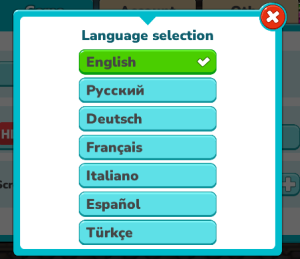
The game language must be set to English in the game settings
The game window must NOT be maximised or in full screen mode. The bot will adjust the window size when started
The application does not open?
If the application fails to launch and displays an error stating that vcruntime140.dll is missing, this means the Microsoft Visual C++ Redistributable 2015–2022 package is not installed or has become corrupted. This is common on fresh Windows installations, minimal Windows builds, and some virtual machine environments.
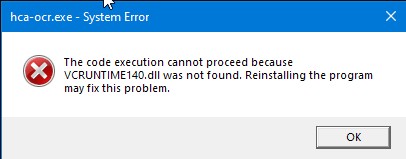
Installing the package from microsoft below will resolve the issue
https://aka.ms/vc14/vc_redist.x64.exe
After installation, launch the application again. A system reboot is normally not required.
Is the application safe?
It is important that you download the application only from the official GitHub download page. The bot is not distributed or hosted anywhere else. The application is updated regularly, and the upload timestamp is displayed on the site for transparency.
If you prefer to take additional precautions when running third‑party software on your personal or work machine, the following articles may be helpful:
Protecting Your PC While Using the Bot
Using the Bot in a Virtual Machine (VM)
CAPTCHA mail not going to inbox?
This may happen since the mail is a repetitive notification and some mail systems may eventually send these mails to Spam or other folders. With Gmail these mails may end up going to ‘Promotions’. To prevent this, make sure you add/save admin@hcassistant.com as a ‘contact’. Also mark the mails as ‘important’ if your email application supports such features.
Here is a simple guide for Gmail users to avoid CAPTCHA mails ending up in a wrong folder causing you to miss important alerts
Some mail providers may temporarily refuse mails, usually for a short duration of time – I recommend testing the CAPTCHA mail notification especially before long runs.
Please ensure your mail box does not completely fill to it’s capacity. This means you won’t be able to receive any new mails, so you might miss important CAPTCHA mails
How to install / upgrade version
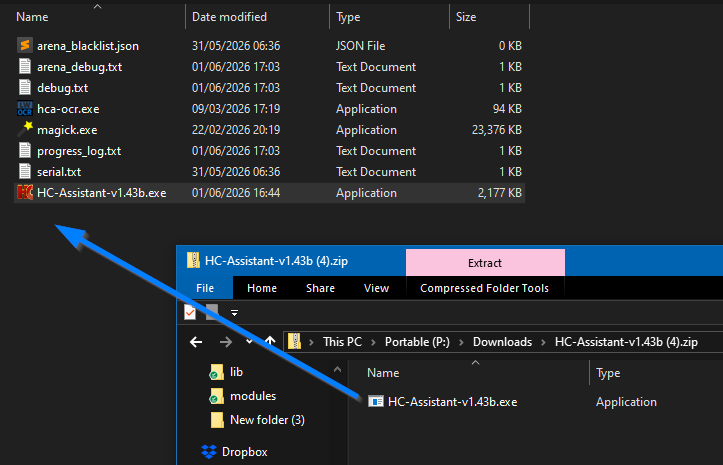
No installation is necessary for HC Assistant. Simply download the zip file, open it, then drag and drop the file preferably to an empty folder. After running the application for the first time a file (serial.txt) will be generated containing a random serial number.
You will only ever need one serial number for HC Assistant, even if you upgrade to Premium. Once Premium is activated all you need to do is restart the application
Upgrading is simple. Just download the latest file from our homepage, open the zip and drag and drop the file to your existing HC Assistant folder. It is recommended to check for latest versions regularly as updates are often released daily.
From time to time HC Assistant will display a message that an update is available, these updates comprise of all the minor updates (also known as hot fixes) that are added more frequently. It is highly recommended that you download the latest version when you see this message.
“Virus Detected” when downloading?
Occasionally, security software flags HC Assistant as a threat even though it’s completely safe. This happens because of how our software works – it automates certain in-game actions, and that kind of behaviour can look similar to what antivirus programs are trained to watch out for, even when there’s nothing harmful going on. This is known as a “false positive,” and it’s a common experience for small, independent tools like ours, especially newer ones that antivirus companies haven’t seen much of yet.
Security software tends to flag automation tools more cautiously than typical apps, simply because automation can be used for both helpful and harmful purposes — and antivirus programs can’t always tell the difference just by looking at what a program does on the surface.
Here’s what’s worth knowing about how HC Assistant is actually built:
- Nothing is hidden. The app is a single, self-contained program, everything it needs is included openly. It doesn’t disguise itself, doesn’t try to look like a different piece of software, and doesn’t download or run anything from outside sources at any time. When a false positive occurs, we report the file directly to the antivirus vendor with these details, and they review and clear the false positive
- It doesn’t touch your system. HC Assistant doesn’t modify Windows system files, doesn’t change your registry, and doesn’t install anything outside its own folder. Everything it does stays contained to the app itself.
- It’s relatively new and small-scale. Antivirus programs build up “trust” for software over time, based on how many people have used it and for how long. Because HC Assistant is a small, independently made tool rather than something from a large company, it hasn’t built up that recognition yet, which makes it more likely to get double-checked, even when there’s nothing wrong.
What are we doing about it?
As soon as we’re aware of a false flag, we report it directly to the antivirus provider for review. These reports are usually resolved within 1–2 days, after which the warning stops appearing for new downloads.

What should you do if you see a warning?
Please let me know straight away mrbeepbeepp@gmail.com so we can start the review process immediately. The sooner we hear about it, the sooner it gets cleared.
In the meantime – update your antivirus definitions
Sometimes the warning appears simply because your antivirus’s virus definitions are a little out of date. Updating them often resolves the issue right away, even before we’ve finished our report.
If you use Windows Defender (built into Windows):
- Open Windows Security (search for it in the Start menu)
- Click Virus & threat protection
- Click Check for updates under “Virus & threat protection updates”
- Once updated, try downloading again
We appreciate your patience – this is simply a side effect of building automation tools, and it doesn’t reflect any actual risk to your device.
.
Treasure Hunt / Hammer Event Module does not work?
Since this event alternates field graphics each time HC Assistant needs to be adjusted to it works with the latest graphics. This update normally occurs on the same day of the event starting. Navigate to the download page and download the latest version, even if the version that shows is the same one you are currently using. The “What’s New?” section on the front page is always updated with new changes/updates