
This version of Hustle Castle Assistant will only work with MYGAMES Launcher for PC
Game Language must be set to English and Premium needs to be active in the game.
Download Latest Hustle Castle Assistant
The install/setup intructions are available on The GitGub download link page. If you have any issues, the fastest way to contact me is my gmail email account mrbeepbeepp@gmail.com.
Download from GitHub [HC-Assistant-v1.43k.zip]
Updated 4 days ago [23 Oct 2026, 21:34 BST]Register Application
Notice: The registration form has been added to the bot. It will appear when you attempt to start any of the Premium modules. You will be prompted to enter your email address, then just wait until you receive the activation confirmed mail.
You can still use this form, or otherwise contact my gmail address at the bottom of the page, which will notify me almost instantly. This process will be completely automated in the near future
Hustle Castle Assistant Interface Guide
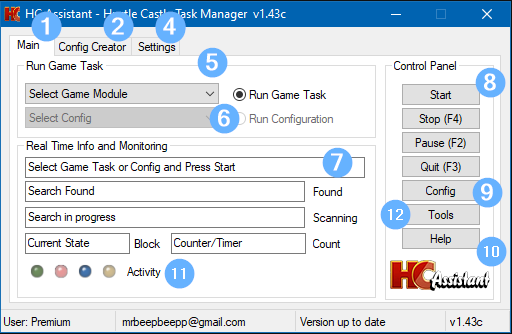
- Main Control Panel: Central hub for managing bot operations and accessing key features.
- Config Creator: Create, edit, save, and load game module configurations. Choose task order (sequential or random). Saved configs can be selected from “Run Custom Config” selection.
- Admin Panel (Not Shown in Image)
- Settings: Customize bot behavior including audio/email alerts, attack powers, speed adjustments for network conditions, blacklist management (to avoid strong opponents), and more.
- Run Single Task: Quickly execute a single task with custom settings. Configure repeat count and item usage via “Task Config”.
- Select Config: Load a saved configuration created using the “Config Creator”.
- Real-Time Info: Displays live bot activity and health status. Primarily useful for debugging and monitoring, not essential for general use.
- Control Panel: Start, Stop (F4), Pause (F2), and Quit (F3) controls. Function keys are especially helpful when the mouse is locked to the game window.
- Config: Set config options for all game modules
- Help: Opens this documentation page in your default browser. If already open, it opens a new tab.
- LED Activity blinkers. Not generally useful other than show the bot is active. Green/Red/Blue represents the bot clicking actions, searches and block changes. The orange LED will blink when checking for CAPTCHA.
- Tools: Opens a menu selection of various tools as explained further down this page
Settings Guide
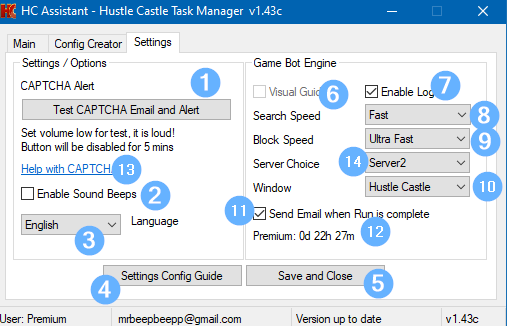
- Test CAPTCHA Email and alert: The server will send an immediate test alert Email so you can be confident the notification system is working and the emails go directly to your Inbox. The audio alert will also activate (This is very loud so advise to keep volume low for test). To prevent abuse, the button will be disabled / inactive for a few minutes after each test.
- Enable Sound Beeps. The sound beeps are generally added for development use as they may indicate when a run is complete or when a timer is counting. I have added this as an option but it is only really helpful as an audio indicication that the bot is running as normal and progressing through levels.
- Language. Language of the bot interface. 7 languages are available (English, Russian, Spanish, Turkish, Portugese, Polish and German). If your language is missing send me an Email and request it to be added. Can be done in less than a few hours.
- Settings Config Guide. Link to this page.
- Save and Close. Your settings will be saved and GUI returns to main page.
- Visual Guides. Currently disabled but can be enabled by developer. Gives a visual guide of the bots operation when it is searching.
- Enable Logs. Enabling this will write search logs to the file debug.txt. It is generally only used for troubleshooting. On slower machines this can cause lag when the bot is running for long durations.
- Search Speed. This is the speed of every search the bot does. Some searches have hard coded time waits or delays which won’t be affected by search speed settings. If the bot is running on a slower machine you might want to slower the speed to resolve misclick issues. A slower machine may not display graphic elements as quickly as a faster machine like buttons and show a timer icon from time to time when it loads the graphics.
- Block Speed. This is the speed the bot transitions from block to block. An example of a block could be “PrepareSquad” and the next block could be “Attack”. As with Search Speed, this setting allows you slow the speed setting if you experience any lag. A “slower machine” doesn’t necessarily mean an older or out of date system. It can mean the system is running multiple applications at once or the network is slow. If you feel you need to slower the settings then it is advisable to change both Search Speed and Block Speed at the same time. The only reason there are two speed settings because they have a completely different function and independent of each other.
- Window. This should always be set to “Hustle Castle” The other setting (HCSS) is an image viewer used for development.
- Send Email when Run is complete: Sends you an Email notification when Dark Cathedral/Arena/Dungeon runs complete (Premium Only Feature)
- Premium Status: Display Premium status and expiration details
- Help with CAPTCHA. Opens a web page with a guide to help with captcha completion
- Server Choice. Backup server selection should there be any maintenance or downtime
Available Game Modules
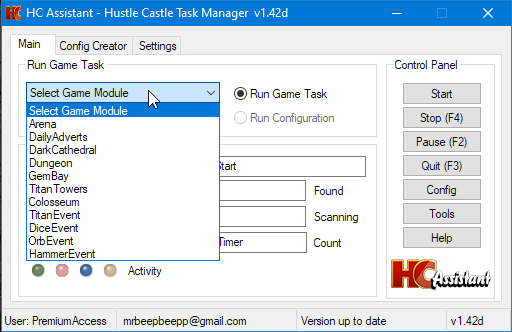
- Arena
- Daily Adverts
- Dark Cathedral
- Dungeon
- GemBay
- Titan Towers
- Colosseum
- Titan Event (Excavation)
- Dice Event (Adventure / Mole-OPoly)
- Orb Event (Tavern)
- Hammer Event (Treasure Hunt)
Tools Menu
The Tools Menu contains several helpful utilities and optional features that can assist with troubleshooting or provide extra information.
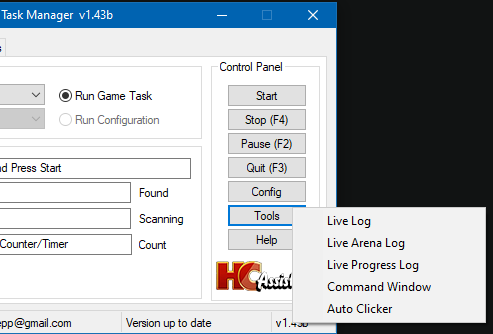
- Live Log: Shows the main debug log (debug.txt). This log is only useful when “Enable Logs” is turned on in Settings. When enabled, the log records almost every action the bot performs. This is mainly used when diagnosing issues—if something goes wrong, I may ask for this log to help identify the problem quickly.
- Live Arena Log: Displays Arena‑related information such as battle results, opponent power levels, attack choices, and the power levels of opponents the bot plans to attack based on your Arena settings. If the bot attacks a different opponent than expected, this log helps explain why—for example, the preferred target may have been blacklisted or their power may have been misread.
- Live Progress Log: Shows general progress information and is updated regularly with new useful reports. It includes events such as maintenance detection, the time taken to complete Dark Cathedral, Dungeon, and Arena runs, and other helpful status updates.
Notes on Logging: The Live Log and Arena Log automatically clear themselves each time the application starts. This prevents the log files from growing too large, which could cause performance issues.
On slower systems, the Live Log (when “Enable Logging” is turned on) may cause lag over time because it records nearly every search and click.
All log files (debug.txt, arena_debug.txt, and progress_log.txt) are stored in the same folder as the application. Using the “Live Log” option opens a Windows PowerShell window that displays the log updating in real time.
- Command Window: A developer/debug tool. It opens a CMD/DOS window where you can manually test OCR functions (such as reading opponent power). This was mainly useful in older versions when Arena power‑reading issues were more common.
- Auto Clicker: Shows information about the basic built‑in auto‑clicker. This tool is helpful for repetitive tasks such as opening multiple chests, upgrading Clan Territory buildings, rolling dice in Spicy Mole‑opoly, and more. Selecting this menu option is not required to use the auto‑clicker—it simply displays the instructions shown below:
Press Control + A: Start/Stop the Auto Clicker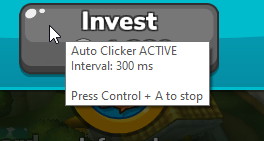
Control + Left Arrow: Decrease the time between clicks (faster clicking)
Control + Right Arrow: Increase the time between clicks (slower clicking)
Fastest speed: 0.1 seconds between clicks
Slowest speed: 1 second between clicks
A small visual tool tip will appear when the auto‑clicker is active to remind you to be careful when moving your mouse and de-activate when finished.
How to play with “Specific Friend” in Dungeon
Dungeon has an option “SpecificFriend” which enables you to partner with a friend on your favorites list, here’s how to set it up:
In summary all you need to do is screenshot an image on your friend list and the bot will attempt to partner with them after detecting the name on the fave list, the image will look similar to this:

4) Now take a smaller screenshot of that image, personally I use the app GreenShot for this purpose, it’s free, popular, lightweight and can quickly capture specific regions. Capture the region of the name of the friend like the example “Diego” above. It doesn’t need to exact, just enough so the bot can distingish it from other names on your favorites list