
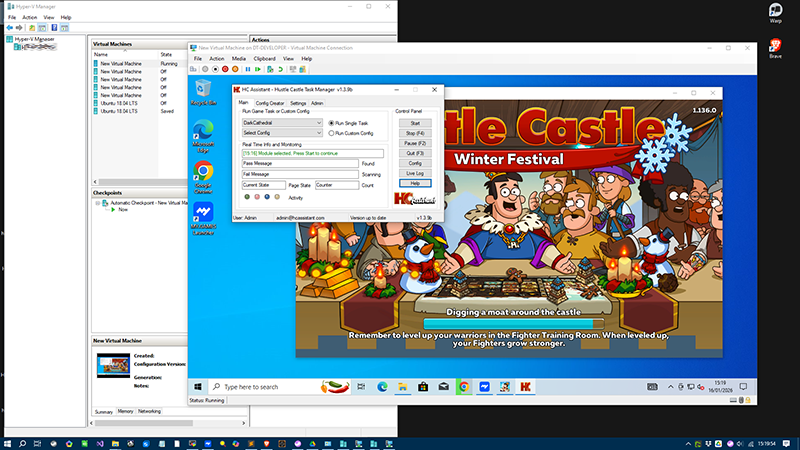
You can run the bot inside a virtual machine if you prefer not to let it control your real mouse or desktop. When used this way, the bot only interacts with the game running inside the VM window, keeping your main system isolated and untouched.
How VM Isolation Works
All mouse movements and clicks generated by the bot stay inside the VM. The bot cannot move your host cursor or click anything outside the VM window. This setup gives you an extra layer of safety and peace of mind.
Modules That Work Very Well in a VM
Many modules in the bot are simple and do not rely on advanced graphics or OCR. These modules typically:
- Click buttons in fixed positions
- Navigate menus and static screens
- Use basic pixel or color checks
- Do not rely on OCR or text recognition
- Do not track fast animations or effects
Because these modules interact with predictable, non-animated UI elements, they usually work just as well in a VM as they do on a normal desktop. If you mainly use these simpler modules, a VM is an excellent option.
Modules That May Need a Normal Desktop
Some advanced modules depend on features that can be affected by virtualization, such as:
- OCR (reading text from the screen)
- Fast or complex animations
- Pixel-perfect color sampling
- Graphics that rely on hardware acceleration
In some VMs, graphics may render slightly differently or run at lower performance. These modules may still work, but they might require extra tuning or may perform more reliably on a normal desktop.
Benefits of Running the Bot in a VM
- Your real mouse and keyboard remain fully under your control
- The bot cannot click outside the VM window
- You can isolate the bot from your main system
- You can create VM snapshots and roll back at any time
Recommended VM Setup
For the best experience when using a VM:
- Use a stable resolution and avoid changing it while the bot is running
- Close unnecessary programs inside the VM to reduce lag
- Test the modules you plan to use and adjust settings if needed
In summary, most of the bot’s simpler, click-based modules are highly VM-friendly and should work smoothly in an isolated environment. Only the more advanced, graphics-dependent modules may require additional tuning or a native desktop for best performance.
Setting up a Virtual Machine Guide
Setting up a Virtual Machine is very simple which requires no technical skills and only takes a few minutes (excluding the Windows 10/11 install time). Below is a an external link which covers all the steps required.
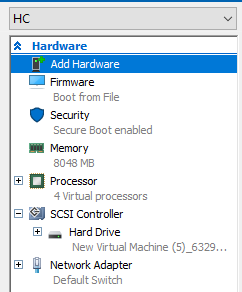
For optmium performance for using the bot and game together within a Virtual Machine it is recommended to allocate 8GB RAM (If available) and with 4 processors which can be set in the VM settings.
Windows 10 is recommended because it’s much less demanding on CPU and RAM resources which results in increased performance, this is especially notable on slower machines.
Also be aware that since the VM is adding a new Operating System this will use up storage space. You might want to turn off Auto Updates, under Network properties select “Set as metered connection” (this will prevent large auto updates you will never require).
https://petri.com/how-to-install-windows-10-in-a-virtual-machine
You will require a Windows 10/11 Operating System install file (iso), you can download directly from Microsoft using the link below.